Welcome to the Instant Loan Simulator Guide!
This tool allows SACCO Admins and the Kwara Team to safely test out new instant loan products using your real SACCO Data. You can see exactly how an Instant Loan would perform before turning it on in your live Kwara Core system.
This guide will walk you through the three-step process: exporting your data, configuring your loan rules, and deploying the final product.
Quick Glossary (Terms to Know)
Simulation: A test run to see results before anything goes live.
The Detailed Eligibility Roster: The full list of members and whether they qualify for a loan.
Data Ingestion (Upload): Uploading your files into the system.
Deploy: Turning the results on and making the loan active.
Before You Start: Export Your Reports
Before opening the Simulator, you must download five specific reports from your Sacco's Kwara Core environment. Ensure these are saved to your computer in an easily accessible folder.
Member Listing Report: Standard export.
On the Home Screen, find "Operational Reports" on the Navigation Menu on the left
Navigate to Members under Operational Reports and click Generate
Under "Member State" select Active and Inactive and click Submit
Back on the members page, you will see your generated report at the top of your list
Click Download once it is done generating
Deposit Listing Report: Crucial: Ensure you include both the Share Capital and Member Savings products in the export filter.
On the Home Screen, find "Operational Reports" on the Navigation Menu on the left
Navigate to Deposits under Operational Reports and click Generate
Under "Report Type" select Deposit Listing Report
Under "Products" select ALL your listed products
Select the previous day's date and click Submit
Back on the deposits page, you will see your generated report at the top of your list
Click Download once it is done generating
Loan Performance Report: Crucial: Ensure you select all active loan products before exporting.
On the Home Screen, find "Operational Reports" on the Navigation Menu on the left
Navigate to Loans under Operational Reports and click Generate
Under "Report Type" select Loan Portfolio Performance Report
Under "Product" select ALL your listed products and click Submit
Back on the loans page, you will see your generated report at the top of your list
Click Download once it is done generating
Guarantor Listing Report: Standard export.
On the Home Screen, find "Operational Reports" on the Navigation Menu on the left
Navigate to Loans under Operational Reports and click Generate
Under "Report Type" select Guarantor Listing Report
Select the current date and click Submit
Back on the loans page, you will see your generated report at the top of your list
Click Download once it is done generating
Loan Products Report: Standard export of all active Sacco loan parameters.
On the Home Screen, find "Settings" on the Navigation Menu on the left
Navigate to Loan Products under Settings and click Export CSV
This will automatically trigger a download
An example of how all the files would look after completing downloads for all of them:
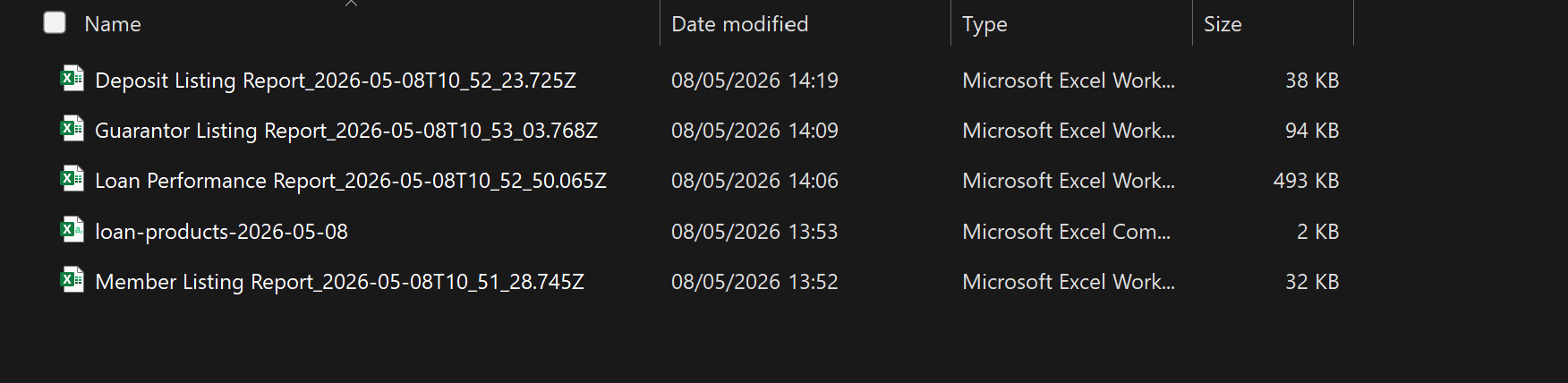
Step 1: Secure Data Upload
Once you have your five files, it is time to load them into the simulatior.
Using the navigation menu on the left, navigate to the Loans Page
Click on the green Instant Loan Simulation button on the top right
This will open a new tab, the Simulation Engine
You will see five upload slots. Carefully match your downloaded reports to the correct slots.
Click Upload & Continue.
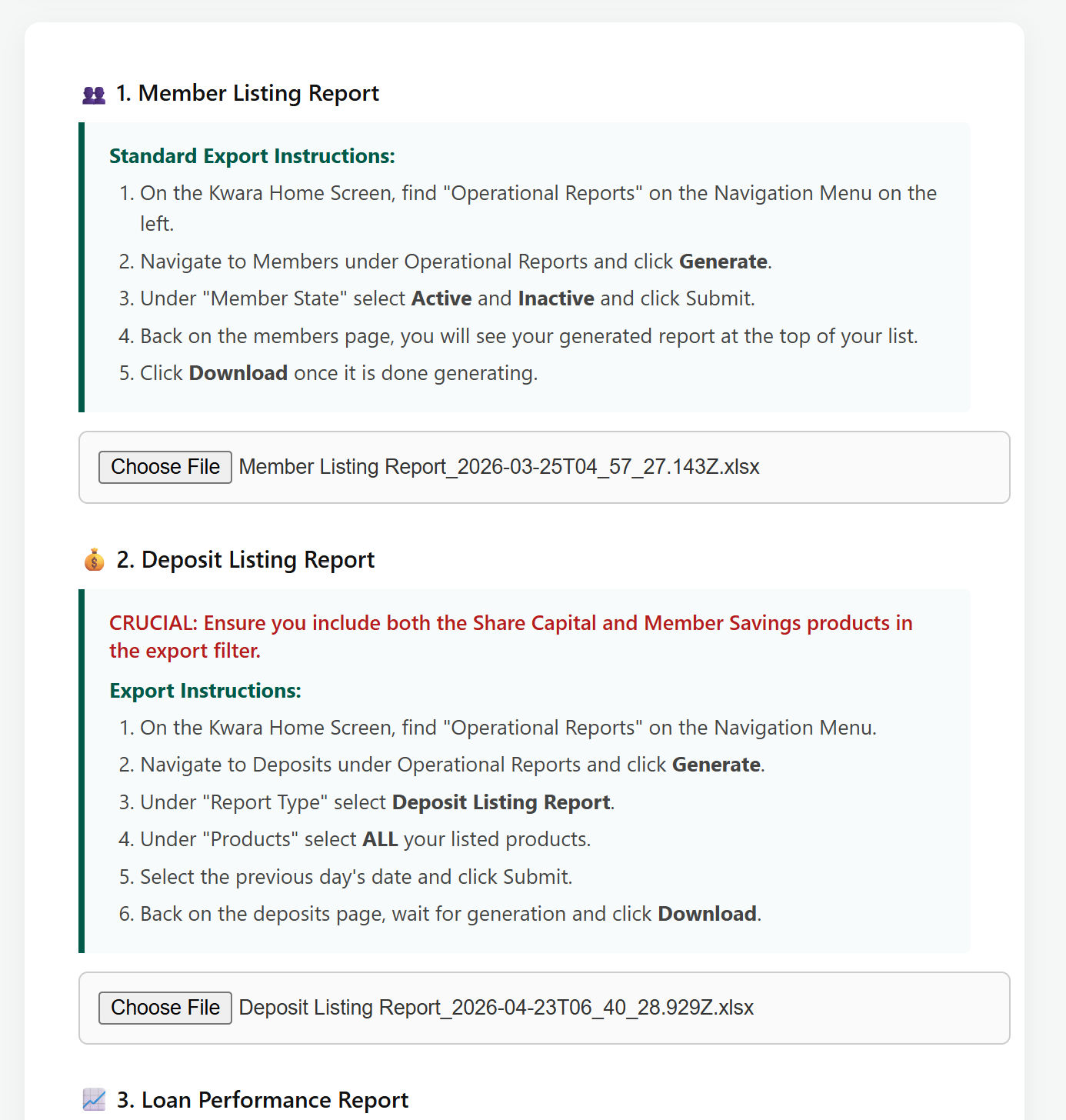
⚠️ What if I upload the wrong file? Don't worry! The system checks your files automatically. If you accidentally put the Guarantor file into the Deposit slot, the upload will stop and show you exactly which file needs to be fixed.
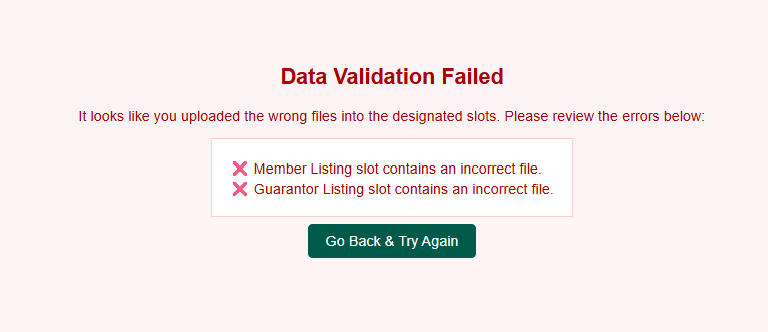
Step 2: Set Your Sacco Loan Rules
After a successful upload, you will be taken to the setup page. This is where you design the rules for the new Instant Loan.
Fill out the form to dictate who qualifies for the loan and how much they can receive.
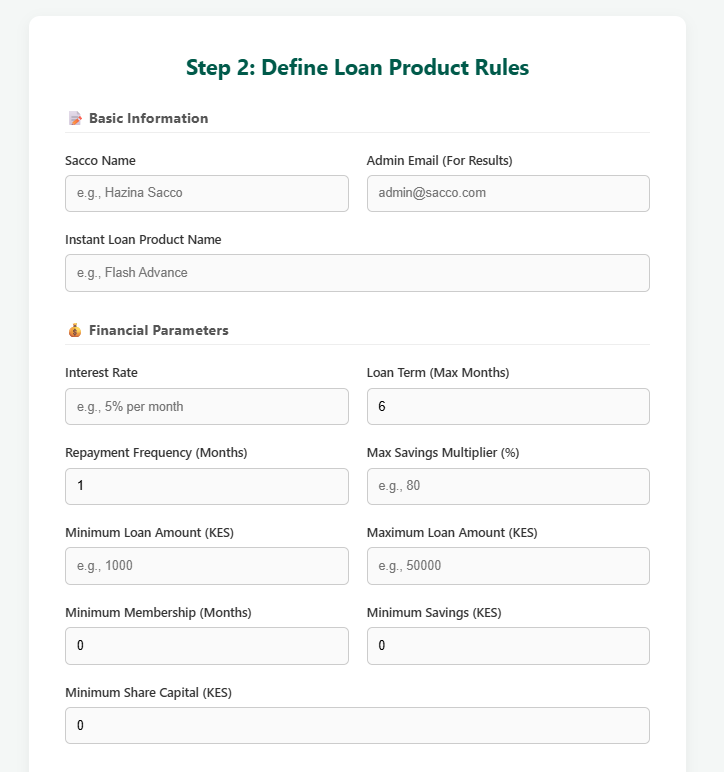
Understanding the Tricky Settings:
Savings Percentage Multiplier (%): This determines the borrowing limit. For example, if a member has KES 10,000 in savings and you set the multiplier to 80%, their maximum eligible loan limit is KES 8,000.
Mutually Exclusive to Itself: Checking this box means a member can only hold one of these instant loans at a time.
Mutually Exclusive Loans: The Engine automatically detects the Sacco's existing loan products and lists them as checkboxes. If you select "Development Loan", any member who currently has an active Development Loan will be instantly rejected for this new product.
Deduction Exempt Loans: If you chose to deduct existing active loans from a member's eligible limit, you can select exemptions here. For example, checking "Asset Finance" means that specific loan will not be subtracted from their total borrowing limit.
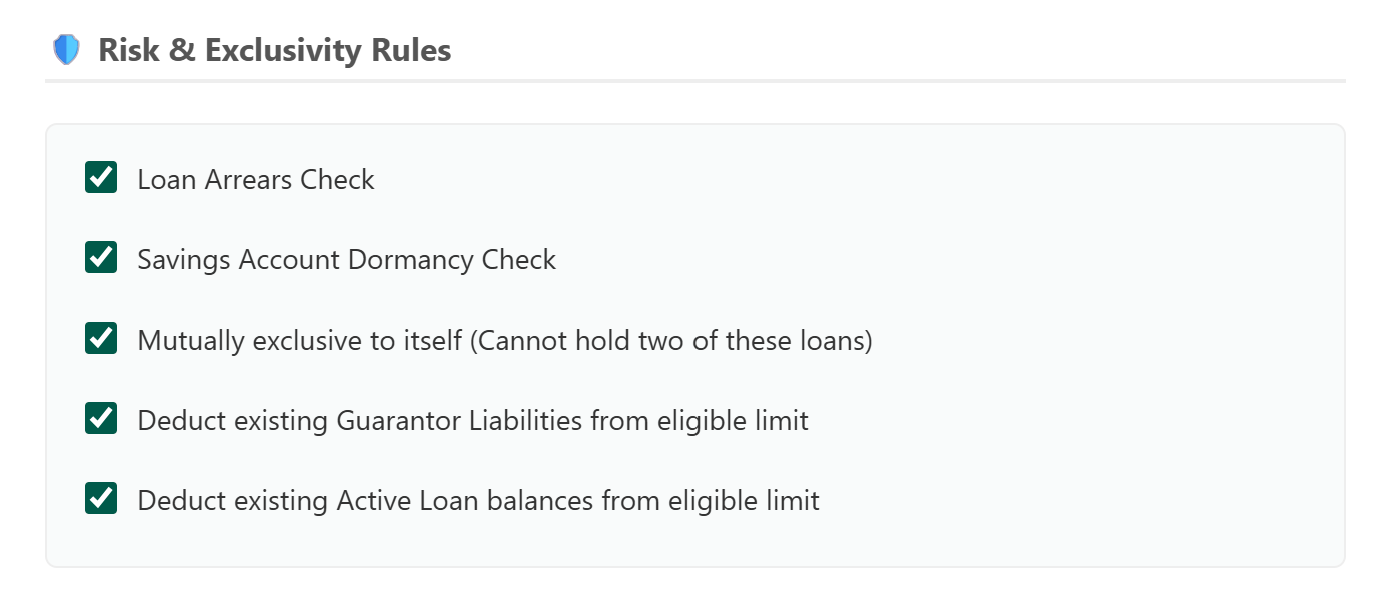
Once your rules are set, click Run Simulation.
Step 3: Review Results and Activate
Once you click Run Simulation, the system tests your SACCO data against the rules you just set. Instead of showing the results on the screen right away, it puts together a full report and emails it directly to the Admin Email you provided in Step 2.
1. Check Your Email & Review the Files
Navigate to your inbox and look for the automated Simulation Report email. This email contains two important attached files designed for you to review:
The Detailed Eligibility Roster (CSV): The full list of members showing exactly who was approved, who was rejected (and why), and their final approved loan limits.
The Simulation Summary File (PDF): A quick summary of the impact of the rules you tested during this run.
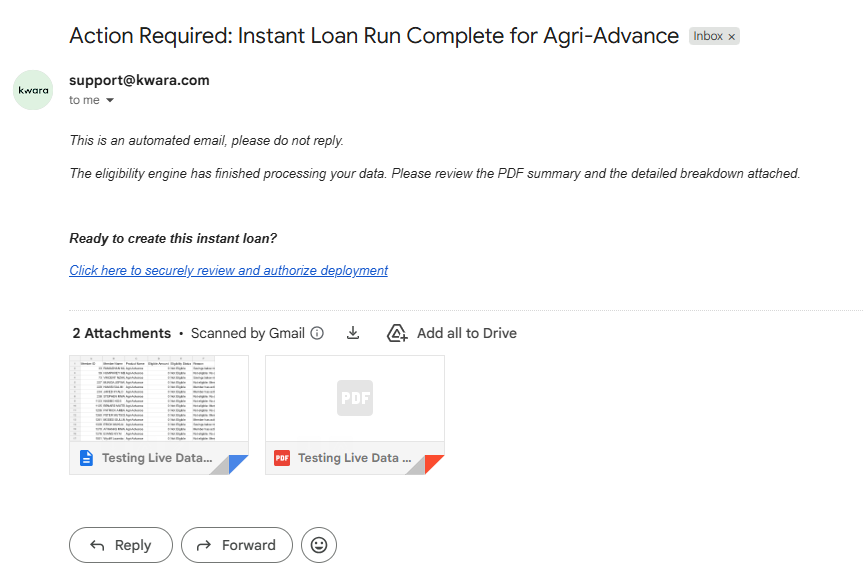
2. The Approval Link (Final Authorization)
Once you are happy with the detailed roster, go back to the email. Inside the message, you will find a secure Approval Link.
Clicking this link takes you to the Final Approval Screen. This is your last check before making anything official. It shows you the total number of members checked, how many passed, and the overall approval rate.
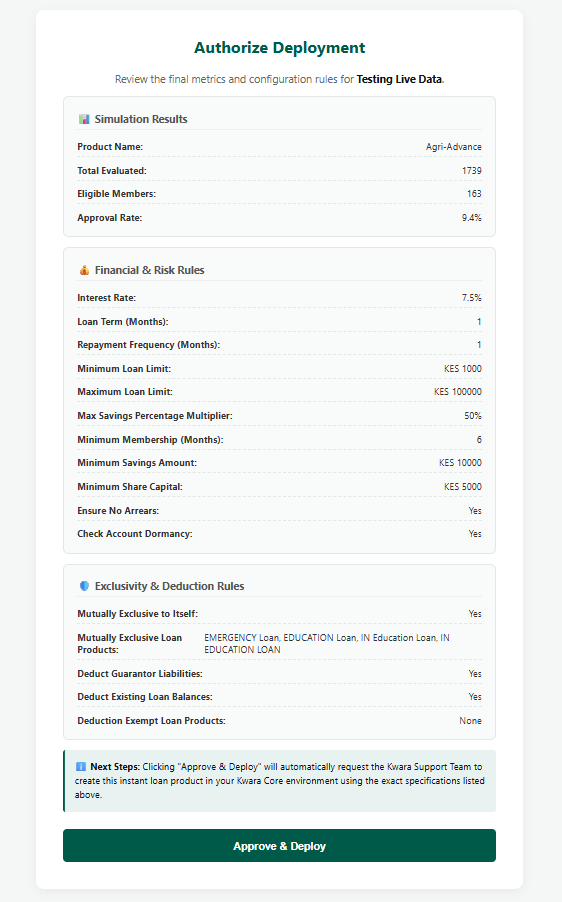
3. Approve & Deploy
If the numbers look good and you are ready to create the instant loan, click the Approve & Deploy button at the bottom of the page.
What happens next?
The system instantly sends your exact rules to the Kwara Customer Support team. The team will use this file to build the product in your live Kwara Core system exactly as you tested it!
❓ Frequently Asked Questions
Q: I clicked "Run Simulation" and got a blank screen or an error.
A: Your data file probably has an issue. Make sure your Kwara Core downloads aren't empty and were saved correctly.
Q: I can't see the loan checkboxes in Step 2.
A: Those only appear if your Loan Products file was uploaded correctly. If you see "No loan products detected," re-download that file from Kwara Core and upload it again without making any changes.
Q: Can I change a rule (like the interest rate) after running a simulation?
A: No - once a simulation runs, the settings are locked. To try different settings, start over: go back to Step 1, re-upload your 5 files, and enter your new rules in Step 2. → Start a new simulation
Was this article helpful?
That’s Great!
Thank you for your feedback
Sorry! We couldn't be helpful
Thank you for your feedback
Feedback sent
We appreciate your effort and will try to fix the article